
How to add a Signup Form to Wordpress
To use Transpond Forms on your WordPress site you need to install the official Transpond plugin. This guide walks you through what the plugin does, how to install it, and how to get forms working.
What the Transpond WordPress Plugin Does
The plugin connects your WordPress site to your Transpond.io account and lets you:
- Embed Transpond Forms anywhere on your site, using shortcodes to place forms without coding.
- Enable the website tracking script on your site, for both site tracking and to enable Conversations.
Requirements
Before you begin you need:
- A WordPress site (self-hosted WordPress.org).
- Administrator access to your WordPress dashboard.
- An active Transpond account with admin access.
How to Download and Install the plugin
Step 1: Download the Plugin
- Login to Transpond and click on your profile picture in the top right corner > Integrations
- Click +Add Integration
- Search for WordPress and click the button to View/Install.
- Click the link to Download the Plugin to save the ZIP file to your computer.
- Also take a note of your account ID from this page, as you'll need it for the install steps below.
Step 2: Install the Plugin
- Log in to your WordPress admin panel (
yourdomain.com/wp-admin). - In the left menu click Plugins then Add Plugin.
- Click Upload Plugin at the top.
- Choose the ZIP file you downloaded.
- Click Install Now.
- Once uploaded you will see a new settings page in the Settings section called Transpond.
- Insert your account id from the steps above, on the initial tab.
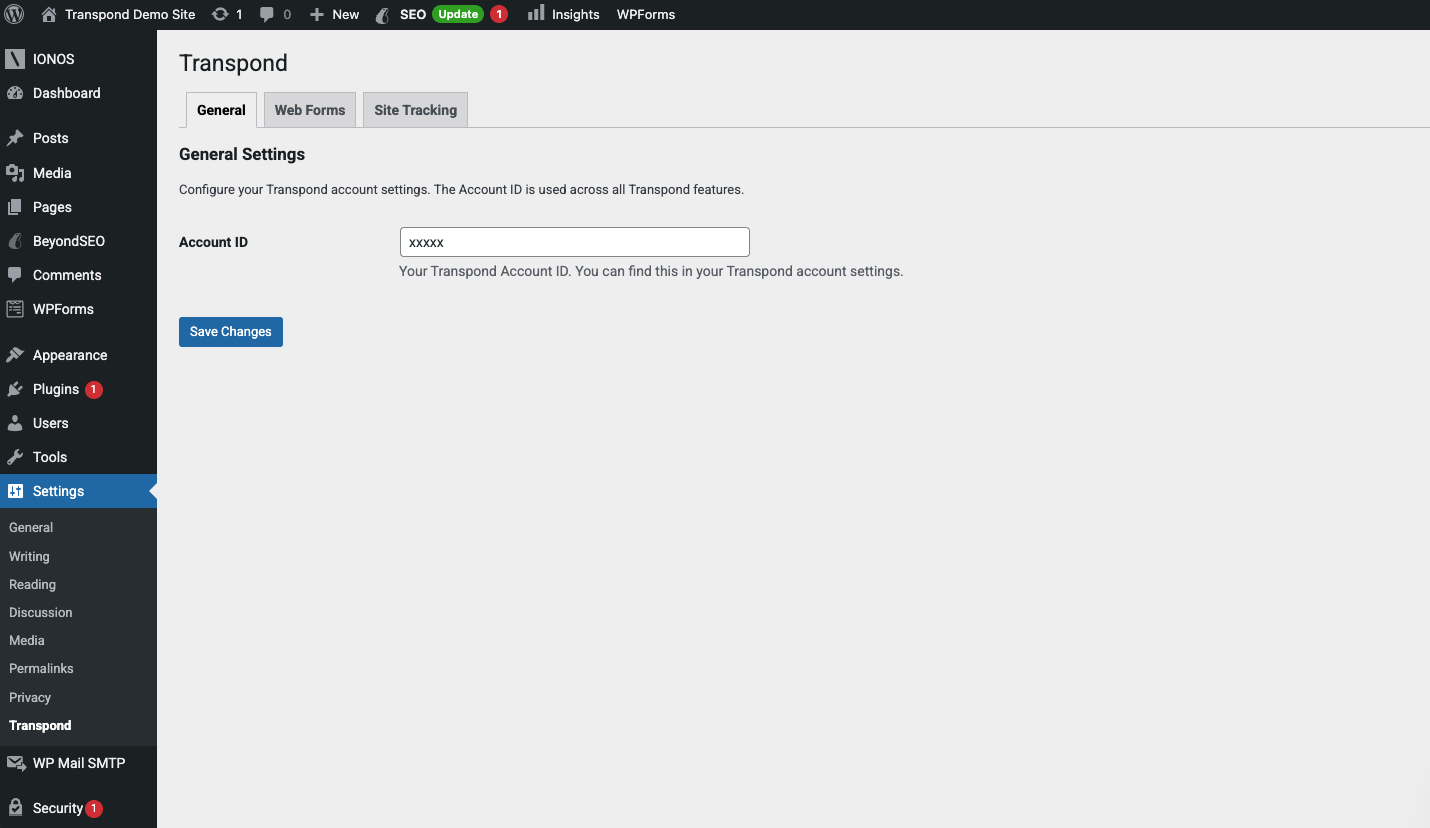
When that's done you'll be able to use the options to add forms, enable site tracking and toggle conversations.
Embedding Transpond Forms on your WordPress site
You can add forms to pages on your site using shortcodes.
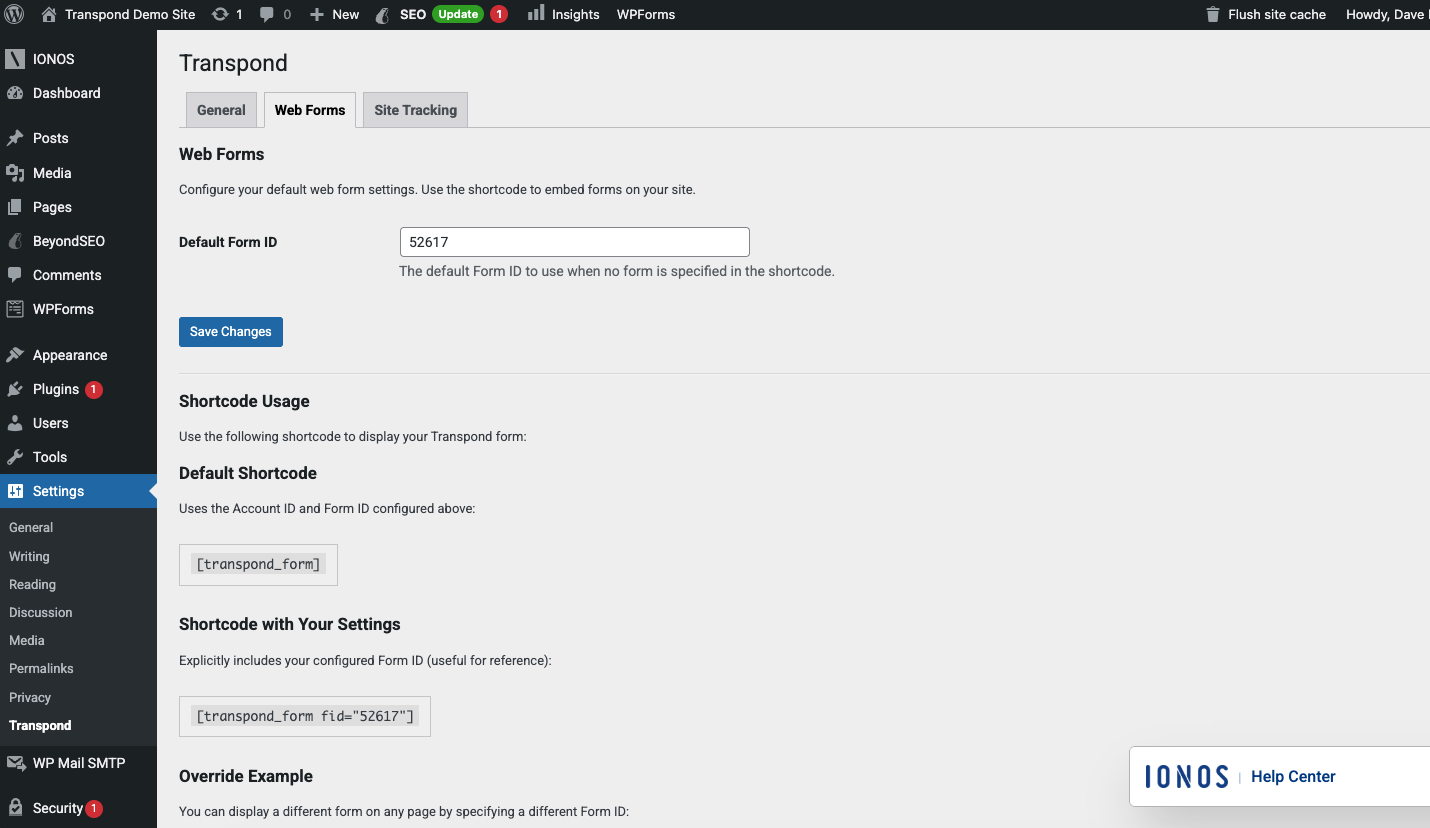
- In Wordpress, go to Settings > Transpond > switch to the Forms tab.
- If you haven't already, make sure you configure a Default Form ID. This is the form that will be displayed if you don't include an ID in your shortcode.
- To get the form ID, login to Transpond and go to Websites > Forms > click on your published form > find the ID in the top right corner.
- From this page you can now find the shortcode to embed a form on your site.
- Use
[transpond_form]for your default for, or[transpond_form fid="12345"]to use a specific form.
- Use
- Paste the shortcode into any page, post, or widget area where you want the form to be displayed.
Enabling the site tracking script on your WordPress site
In addition to enabling forms, the Transpond plugin for WordPress lets you enable the site tracking script. The script will let you track your site visitors in Transpond. You can read more about site tracking in our dedicated site tracking article.
Enabling the site tracking script also means you'll be able to turn on the chat widget for Conversations, so you can chat with your site visitors from inside Transpond.
To enable the site tracking script
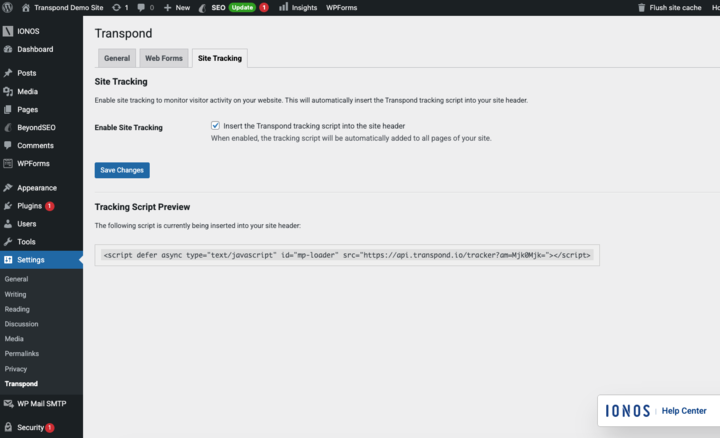
- In Wordpress, go to Settings > Transpond > switch to the Site Tracking tab.
- From here, check the box to enable site tracking.
- Click the button to Save changes.
You'll see a preview of the script that is being inserted into all the pages on your site.
Using the plugin along side other Wordpress plugins
There are a range of Wordpress plugins that requires some tweaking to the process. In that case follow the instructions below for best results.
Divi
When using Divi you need to use a 'code' module to insert the Transpond form into your page.
Insert a code module as a "row" and then paste the short code in.