
Adding a Table of Contents to Your Email
A Table of Contents (ToC) is a great way to help your readers navigate longer emails. Rather than scrolling through everything to find what's relevant to them, readers can jump straight to the section they're most interested in, which means more engagement and a better experience overall.
This is especially useful for newsletters, product roundups, or any email that covers multiple topics in one send.
Why use a Table of Contents?
If your email has three or more distinct sections, a ToC is worth considering. Here's why:
It respects your reader's time. Not everyone will want to read every section. Letting them skip to what matters to them keeps them engaged rather than overwhelmed.
It makes your email feel more polished. A clear, structured layout signals that you've put thought into the content.
It can improve click-through rates. Each ToC link is a clickable element that takes readers deeper into your email, which is more interaction with your content.
How it works
A ToC in an email works using anchor links. These are internal links that point to a specific location within the same email, rather than to an external website. You set up two things:
- An anchor, a named marker placed at the start of each section you want to link to.
- A table of content, which contains clickable links that points to each anchor.
When a reader clicks a ToC link, their email client jumps them down to that section.
Anchor links are supported by most major email clients, including Gmail, Apple Mail, and Outlook for Mac. Outlook for Windows has limited support and so the reader may not be jumped to the section, but the email will still display correctly.
How to setup anchor links
- Choose where you want the anchor link to go. Usually it would be near the heading of a section.
- Click into the area you want the anchor link to point to. Don't select any existing text - just click next to the area you want to the anchor to point to.
-
In the menu bar, click the Anchor icon, give it a descriptive name and click the link to Add. The name you choose will be what is displayed in the table of contents.
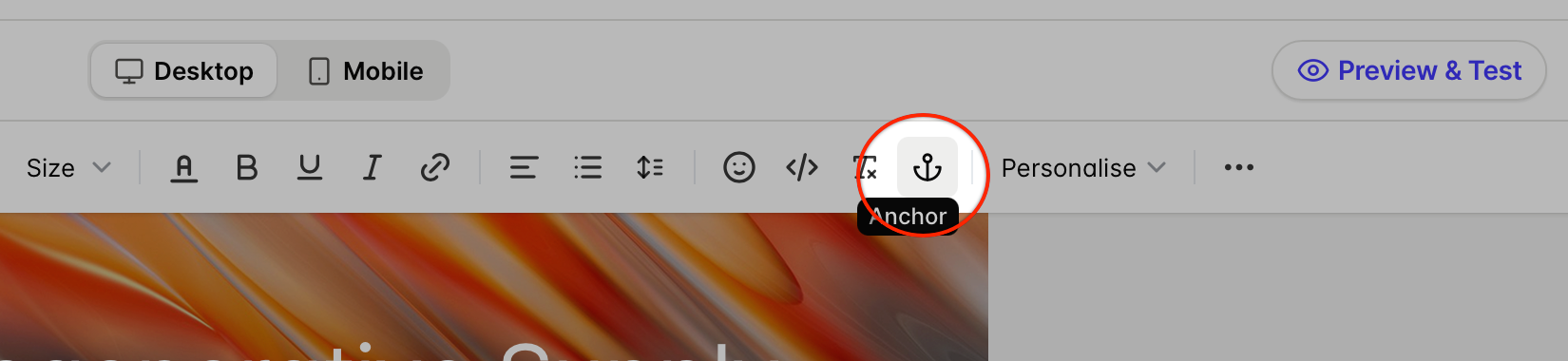
- Once added, you'll see a little anchor icon inserted. This won't be visible when the email is sent. It's just for your visual aid while editing the template
How to create a table of content
Before inserting your ToC, make sure you have setup all your anchor links. The ToC is not dynamic, so if you add, remove or change anchor links later, you'll need to remove the ToC and re-add it to reflect your most recent changes.
- Click Add > drag a text paragraph element into your template, where you want to place the table of contents.
-
Click into the paragraph element to edit it, and then click on the three dots (...) in the menu bar > Table of Contents.
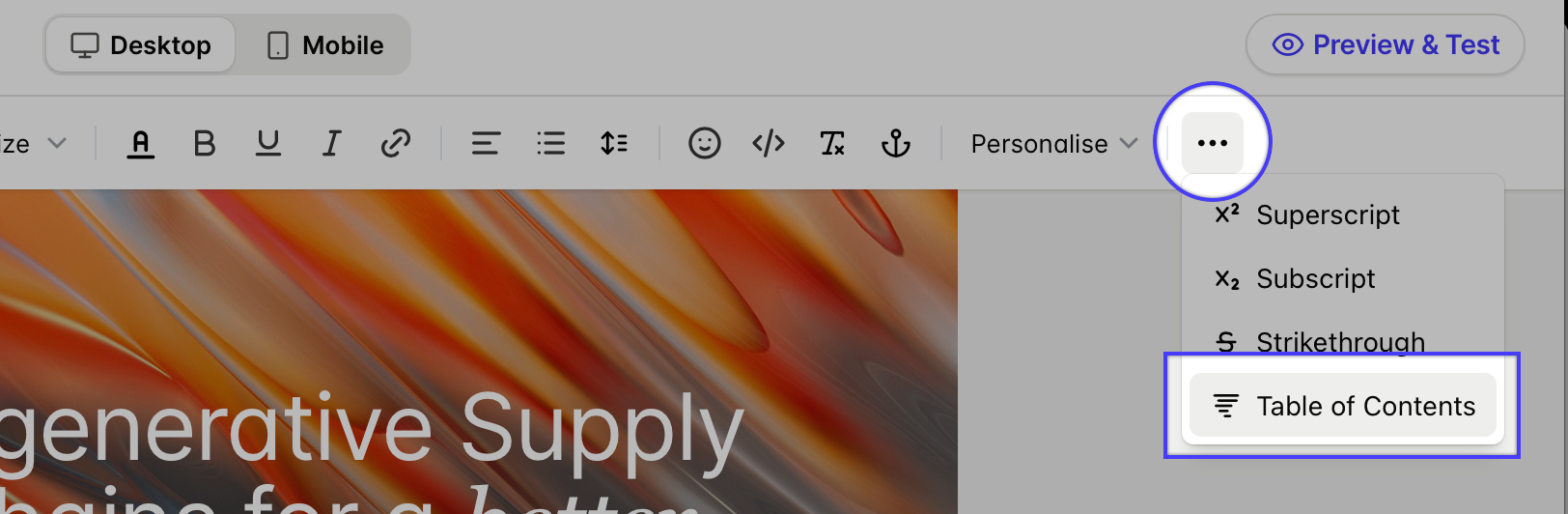
- Any anchor links you've created will be inserted, and will be clickable when viewing the email.
The table of content is not dynamic. So if you add more anchor links at a later date, make sure to remove the old ToC and insert a new one, so it reflects all your anchor links.